

1. Connect an email service
Frontmail doesn’t send email from its own servers. It hands every message to a service – your mailbox or email provider – so the email comes from your address and your provider’s limits and reputation apply. You need at least one.
-
In the sidebar, open Email services and click Add service.
-
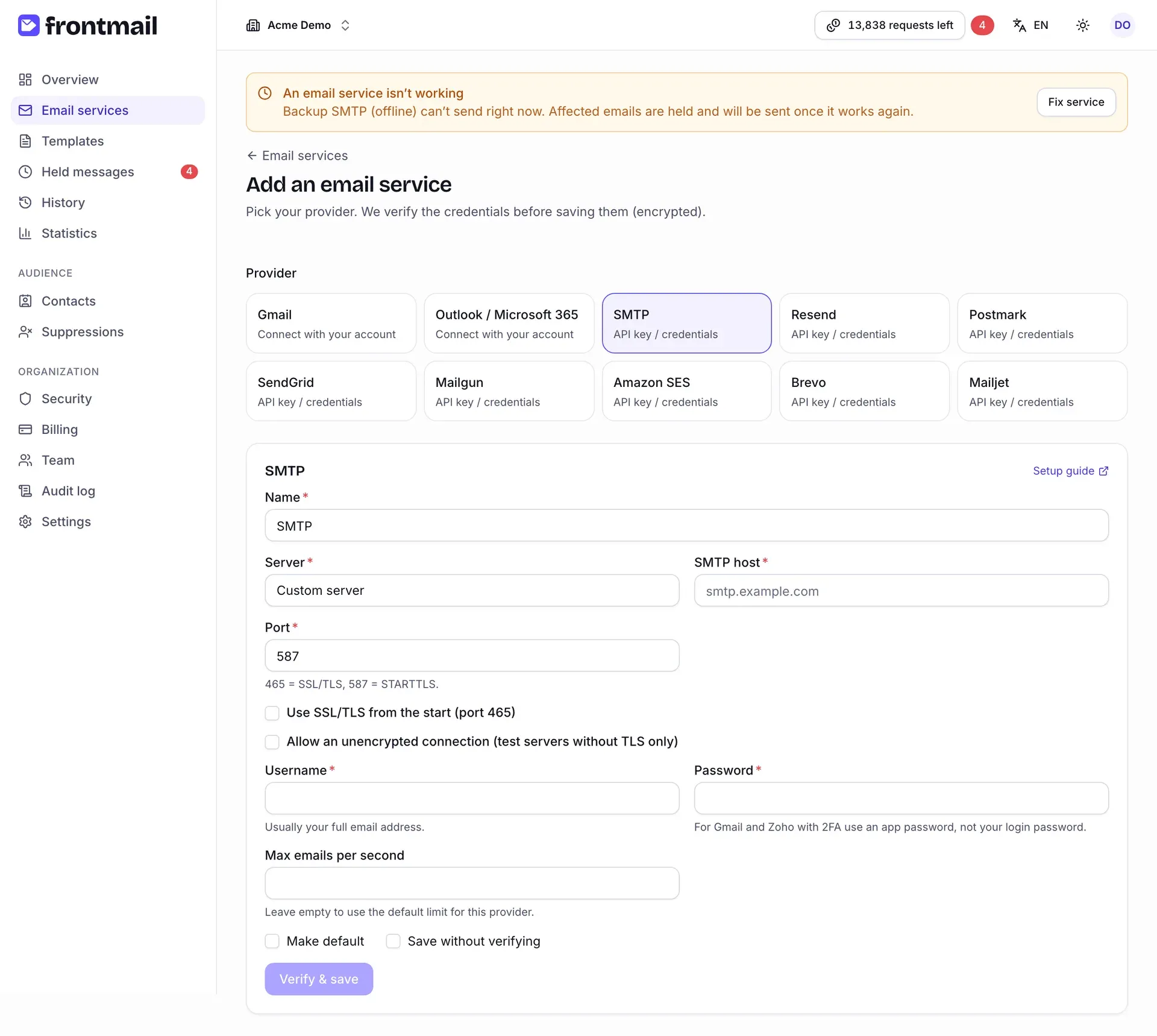
Under Provider, pick where you send from. Each card says how it connects:
- Connect with your account – Gmail and Outlook / Microsoft 365. You sign in with the provider; no password is stored in Frontmail.
- API key / credentials – SMTP, Resend, Postmark, SendGrid, Mailgun, Amazon SES, Brevo and Mailjet. You paste a key or a login.
-
Fill in the form. The Setup guide link in the corner opens the guide for that provider.
- Name – anything that helps you recognize it, e.g. Office mailbox.
- Server – pick a preset (Seznam.cz, Zoho Mail, Gmail with an app password, Microsoft 365 SMTP) or Custom server.
- For a custom server: SMTP host (e.g.
smtp.example.com) and Port –587for STARTTLS, or465together with Use SSL/TLS from the start (port 465). - Username – usually your full email address.
- Password – with two-step verification on (Gmail, Zoho), use an app password, not your login password.
There’s no separate “from” field: emails go out from your username address unless a template sets a different From email that your server allows.
Give the service a Name and click Connect Gmail (or Connect Outlook / Microsoft 365). You’re redirected to the provider, allow Frontmail to send from your mailbox and come back to the service page. Emails go out from the connected address.
-
Tick Make default. Templates that don’t pick a specific service then use this one – and so does your form if you don’t pass a service ID. (Gmail and Outlook have no checkbox here – use Make default on the service page after connecting.)
-
Click Verify & save (for OAuth providers, the connect button). Frontmail logs in to the provider to check the credentials – no email is sent. If the provider refuses them, you see The provider rejected these credentials together with the provider’s own message; fix the value and try again.
Check the service
Section titled “Check the service”After saving you land on the service page. Next to the name you see the health badge and, for your default service, a Default badge.
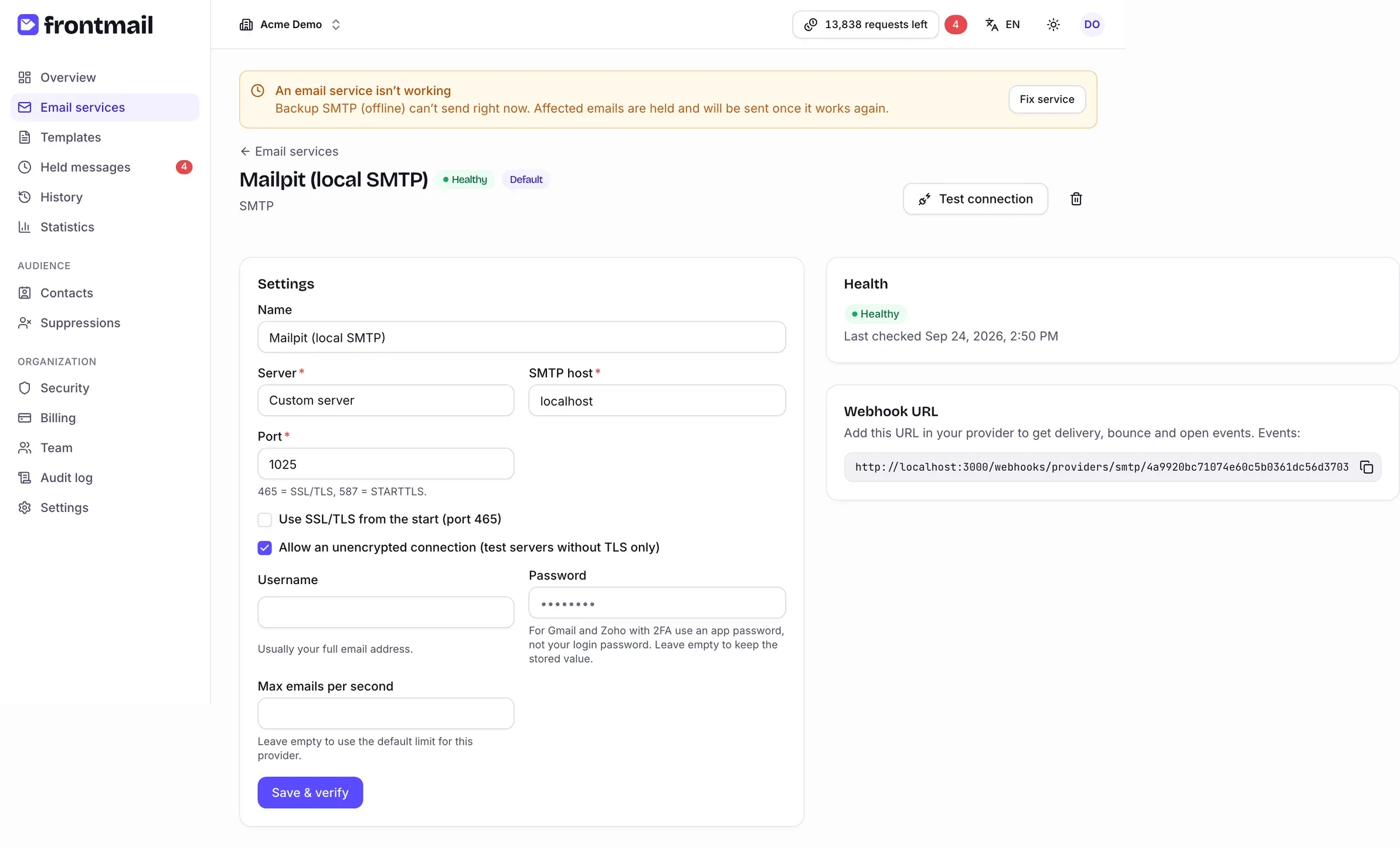
- Healthy – the last check passed. Not working – the provider rejects the credentials; emails for this service wait in Held messages instead of being lost.
- Test connection runs the check again at any time, for example after you changed a password.
- If you use a transactional provider, copy the Webhook URL into its settings to get delivered, bounced and opened events later. SMTP, Gmail and Outlook don’t send such events.
Want the details for your provider? See the SMTP, Gmail and Outlook guides, or the screen reference in Email services.