

Team and roles
The Team page lists everyone in the organization and lets owners and admins invite colleagues and decide what they can do.
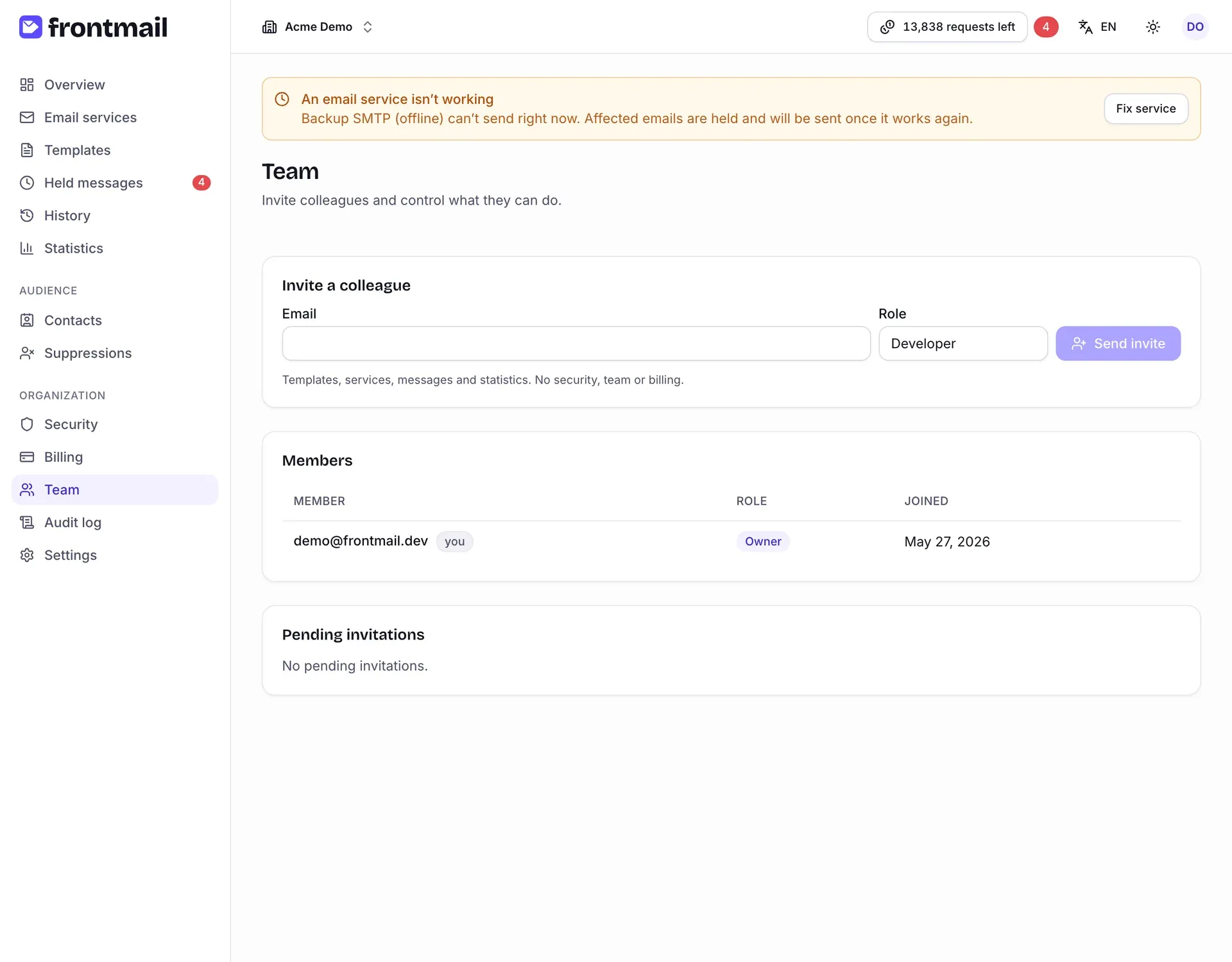
The page has three parts:
- Invite a colleague – email, role and Send invite (owners and admins only),
- Members – everyone in the organization with their Role and the date they Joined,
- Pending invitations – invitations that haven’t been accepted yet (owners and admins only).
Every member can see the members list. Owners also see a Transfer ownership button in the top right corner once the organization has at least two members.
| Role | What it’s for |
|---|---|
| Owner | Full access, including billing, deleting the organization and transferring ownership. Exactly one per organization. |
| Admin | Everything except managing billing and deleting the organization. Can see billing read-only. |
| Developer | Templates, services, messages, contacts and statistics. Can see security settings read-only; no team or billing. |
| Viewer | Read-only access to templates, history and statistics. |
| Billing | Plan, credits, invoices and billing details. |
When you pick a role in the invite form, a one-line hint below the form describes it. The full permission matrix is in Teams and roles.
How to invite a colleague
Section titled “How to invite a colleague”- Enter their Email.
- Choose a Role. Only the owner can invite admins; nobody can invite an owner.
- Click Send invite.
Frontmail emails them a link that’s valid for 7 days. The invitation appears under Pending invitations with its expiry date. Inviting the same address again replaces the old invitation and sends a new link.
Your plan limits the number of team members, and pending invitations count too. When you reach the limit, the form shows Your plan allows … team members (including pending invites) and Send invite is disabled – revoke an invitation, remove a member or upgrade.
How to revoke an invitation
Section titled “How to revoke an invitation”Click Revoke next to the invitation under Pending invitations. The link stops working immediately.
How to change a member’s role
Section titled “How to change a member’s role”Owners and admins see a role dropdown in the Role column. Pick the new role – it’s saved immediately.
The rules:
- Nobody can change their own role.
- The owner’s role can’t be changed – use Transfer ownership.
- Only the owner can make someone an admin, or change or remove an existing admin.
How to remove a member
Section titled “How to remove a member”- Click Remove in the member’s row.
- Confirm with Remove in the dialog.
They lose access to the organization immediately. API keys they created keep working – revoke them in Security settings if needed.
How to leave an organization
Section titled “How to leave an organization”Any member except the owner can leave. Click Leave in your own row (marked you) and confirm with Leave. You lose access until someone invites you again. As the owner, transfer ownership first.
How to transfer ownership
Section titled “How to transfer ownership”Only the owner can do this.
- Click Transfer ownership.
- Choose the New owner from the members.
- Click Transfer.
The new owner gets full control and you become an Admin. The change can only be undone by the new owner transferring ownership back.
Frozen members
Section titled “Frozen members”After a downgrade to a plan with fewer team members, the extra members are marked Frozen. They stay in the organization but act as Viewer until you upgrade again or remove other members.
Accepting an invitation
Section titled “Accepting an invitation”The invitation email contains a link to a Team invitation page that says which organization and role you’ve been invited to.
- Open the link from the email.
- If you’re signed in, click Accept invitation. If not, choose Create an account or I already have an account – you’re brought back to the invitation afterwards.
- After accepting, the dashboard opens in the new organization.
Invitations, joins, role changes, removals and ownership transfers are recorded in the audit log.