

Dashboard overview
The dashboard at app.frontmail.dev is where you connect email services, edit templates, watch what was sent and manage credits, security and your team. This page explains the parts you see on every screen and the Overview page you land on after signing in.
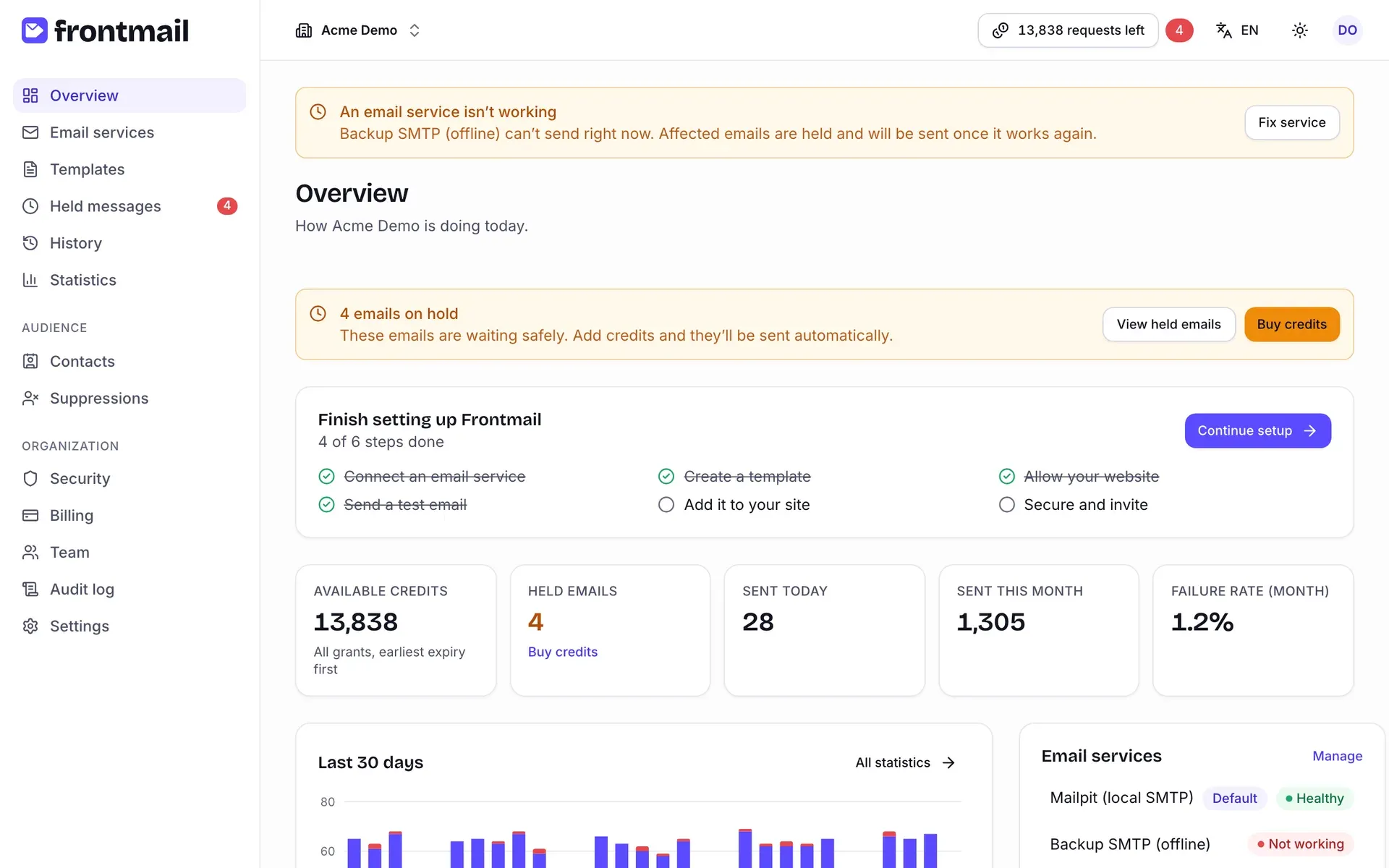
Navigation
Section titled “Navigation”The sidebar on the left is split into three groups. On small screens it’s hidden behind the Open menu button in the top left corner.
| Group | Items |
|---|---|
| (no title) | Overview, Email services, Templates, Held messages, History, Statistics |
| Audience | Contacts, Suppressions |
| Organization | Security, Billing, Team, Audit log, Settings |
Held messages shows a red badge with the number of emails that are waiting for credits or for a working service – see Held messages.
What you can do on each page depends on your role. Viewers see everything read-only, and some pages (security, billing, audit log) are hidden or read-only for some roles. See Team and roles for the full matrix.
Organizations
Section titled “Organizations”Everything in Frontmail – services, templates, credits, keys and team – belongs to an organization. The organization switcher at the top left shows the current organization’s name.
How to switch organizations
Section titled “How to switch organizations”- Click the organization name in the top bar.
- Under Organizations, pick the one you want. Each entry shows your role in it.
The dashboard reloads its data and takes you to Overview of the chosen organization.
How to create another organization
Section titled “How to create another organization”- Click the organization name in the top bar.
- Choose New organization.
- Fill in the form – it’s the same one you saw when you signed up. See Get started.
Each organization has its own plan, credits and keys.
The top bar
Section titled “The top bar”From left to right, the top bar contains the organization switcher and then:
- Credits indicator – for example 13,797 requests left. One request is one credit. The button turns red when you have no credits left.
- Held badge – a red number next to the indicator when some emails are held. Click it to open Held messages.
- Language – switches the dashboard between English and Čeština. The choice is saved to your account.
- Theme – System, Light or Dark.
- Account menu (your initials) – shows your name and email, with links to Settings and Sign out.
Credits breakdown
Section titled “Credits breakdown”Click the credits indicator to see where your credits come from.
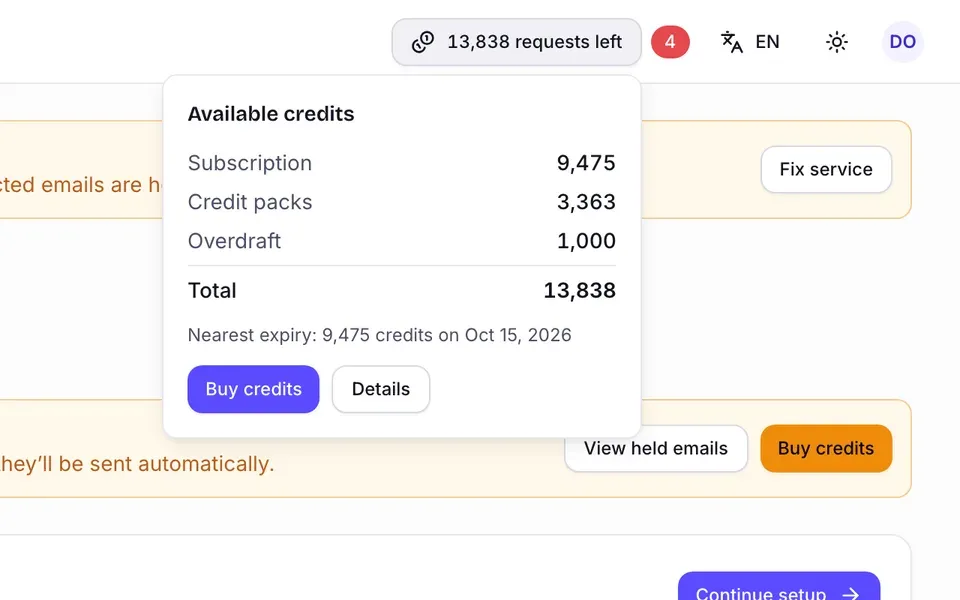
The Available credits popover lists:
- the credits per source – Subscription, Credit packs, Bonus and Overdraft (a source appears only when it has credits; the subscription is always listed),
- the Total,
- the nearest expiry, e.g. Nearest expiry: 9,434 credits on Oct 15, 2026, or No credits are about to expire.
Two buttons follow: Buy credits opens Billing → Buy credits (shown only to owners and billing members), Details opens Billing → Credits & ledger. How credits are spent is explained in Consumption order.
The Overview page
Section titled “The Overview page”Overview answers the question “is everything OK today?”. From top to bottom:
- Held emails alert – when emails are held, a yellow alert (e.g. 4 emails on hold) with View held emails and, for owners and billing members, Buy credits.
- Finish setting up Frontmail – the setup card with your progress (4 of 6 steps done) and Continue setup. It disappears once all six steps are done or when you skip the setup. See Get started.
- Key numbers:
- Available credits – all your grants together, earliest expiry first.
- Held emails – how many emails wait in the hold queue, with a Buy credits link when you can buy.
- Sent today and Sent this month.
- Failure rate (month) – failed emails as a share of all sent and failed emails this month. It turns red at 5 % or more.
- Last 30 days – a daily chart of sent, held and failed emails. All statistics opens Sending statistics.
- Email services – every service with its Default badge and health (Healthy, Not working or Not checked). Click a service to open it, or Manage for the list. Without a service you see Add service.
- Credits by expiry – each grant that still has credits, with remaining / original amount and its expiry date, soonest first.
The numbers refresh every minute while the page is open.
Banners
Section titled “Banners”Important problems are shown as banners at the top of every page, above the page title. Each one stays until the problem is solved.
| Banner | What it means | What to do |
|---|---|---|
| Organization suspended | Sending is paused for the whole organization. | Contact support. |
| Please verify your email address | You haven’t clicked the link in the verification email yet. You can look around, but not send emails. | Open the link in your inbox, or click Resend email to get a new one. |
| Your last payment failed | Your card was declined for the subscription. If the banner says Sending keeps working until …, you are in the grace period and sending still works until that date. | Click Update card (owners and billing members) and fix the card in Billing. Other roles should tell the owner. |
| An email service isn’t working | One or more services failed their last check (the banner lists their names). Emails for them are held, not lost. | Click Fix service to open the first broken service, update its credentials or reconnect it and press Test connection. See Email services. |