

4. Allow your website
Your form will contain your public key. That’s fine – it’s meant to be public – but anyone can copy it from your page source. Two things make sure it only works for your form: the list of allowed websites and the CAPTCHA on the template.
Add your domain
Section titled “Add your domain”-
Open Security. The Allowed websites card lists the domains that may send with your public key.
-
Type your domain into Add domain and click Add. Accepted formats:
Entry Allows example.comexactly example.com*.example.comany subdomain, e.g. www.example.comorshop.example.com– but notexample.comitselflocalhost:3000a specific host and port localhostlocalhoston any port – handy for local developmentMost sites are reachable both with and without
www, so addexample.comand*.example.com(orwww.example.com). -
Click Save at the top of the page.
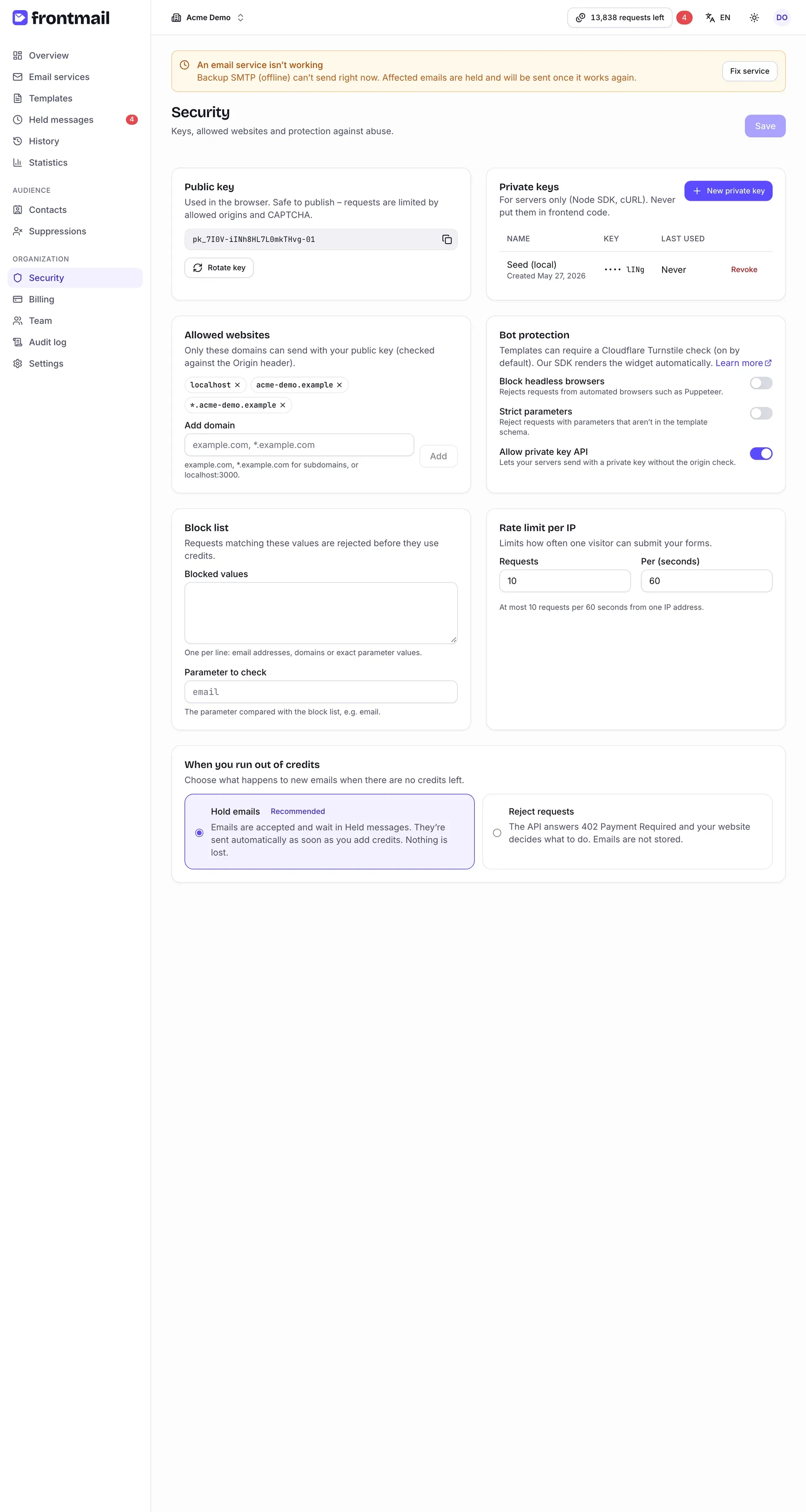
Frontmail compares each browser request’s Origin header with this list:
- No domains at all – the card warns No domains set – any website can use your public key. Sending works from anywhere, which is convenient for a first try but lets others use up your credits. Don’t go live like this.
- A domain that’s not on the list – the request is refused with
origin_not_allowedand nothing is sent. If you see this error, check the exact host in the address bar (with or withoutwww, port number).
Turn on the CAPTCHA (recommended)
Section titled “Turn on the CAPTCHA (recommended)”The allowed websites stop other websites, but not a bot that posts straight to the API. A
Cloudflare Turnstile CAPTCHA does – usually as an invisible check, no
puzzles. Requests without a valid token fail with
captcha_required before they cost you a credit.
For websites, Turnstile runs on your own free Cloudflare widget (Cloudflare’s free plan allows only 10 hostnames per widget, so Frontmail can’t share one key across everyone’s sites). It takes about two minutes:
-
Sign in to the Cloudflare dashboard (a free account is enough), open Turnstile and click Add widget.
-
Name the widget, add your website’s hostnames – e.g.
example.comandwww.example.com– leave Widget mode on Managed and click Create. -
Copy the Site Key and the Secret Key.
-
Back in Frontmail, on the Security page, paste both keys into the Bot protection (Turnstile) card and click Save keys. Frontmail checks the secret with Cloudflare, stores it encrypted and never shows it again.
-
Click Turn on CAPTCHA for all templates. The contact template from this tutorial now has Require CAPTCHA (Turnstile) on (template Settings → Protection); the auto-reply template is skipped because Frontmail sends it, not your form.
Keep the site key handy – you’ll put it into the form in the next step. The framework
components (FrontmailForm for React, Vue and Svelte) render the widget for you. From now on,
every new template has the CAPTCHA on by default.
Optional extras
Section titled “Optional extras”The Abuse protection card offers Block headless browsers and Strict parameters, and further down you can set a Rate limit per IP and a Block list. The defaults are fine for this tutorial – see Bot protection and Security settings when you want to tighten things up.
More: Allowed origins.