

Billing
The Billing page has five tabs: Plan, Buy credits, Credits & ledger, Invoices and Billing details. Payments are handled by Stripe – Frontmail never sees your full card number.
Who can use this page
Section titled “Who can use this page”| Role | Access |
|---|---|
| Owner, Billing | See and change everything. |
| Admin | Read-only: sees all tabs, but no buttons for buying or changing anything. |
| Developer, Viewer | No access – the page shows a notice that your role doesn’t allow this. |
Prices are shown in your organization’s currency – EUR for billing countries in the EU, USD elsewhere.
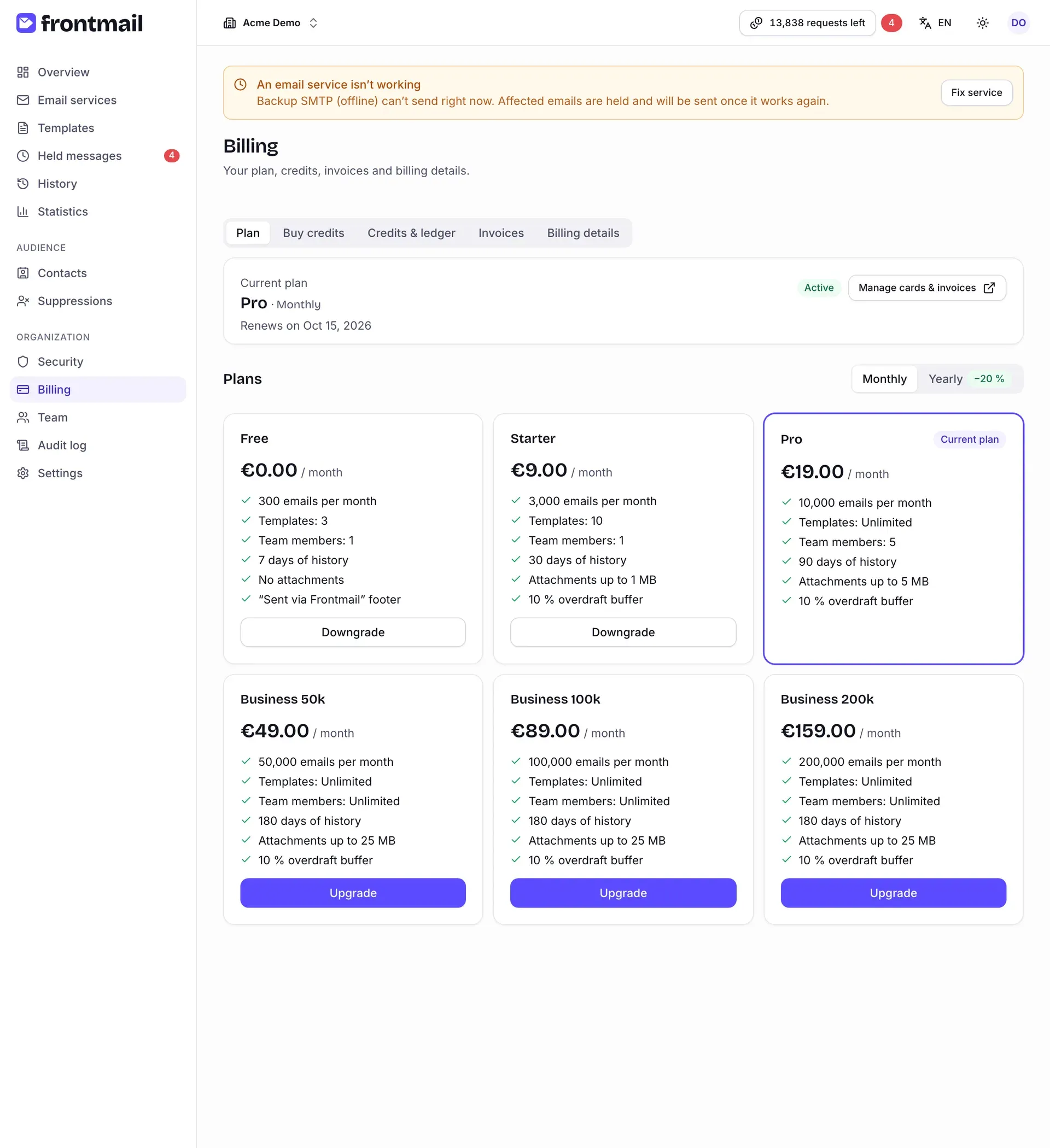
The card at the top shows your Current plan, the billing period, its status (for example Active or Payment overdue), the saved card and one of:
- Renews on … – the subscription renews automatically,
- Ends on …, then switches to Free – you’ve cancelled,
- Changes to … on … – a downgrade is scheduled.
Below are the Plans with their prices and limits. The Monthly / Yearly switch changes the displayed prices; yearly billing is 20 % cheaper. Compare plans in detail on Plans.
How to upgrade from Free
Section titled “How to upgrade from Free”- Choose Monthly or Yearly.
- Click Upgrade on the plan you want.
- You’re taken to Stripe Checkout. Pay there.
- Back in the dashboard, a Processing your payment… notice appears for a few seconds, then Payment complete. Your plan and credits are updated and any held emails are released.
If you close Checkout without paying, the page says Checkout was canceled. Nothing was charged. If the checkout session expired, you’ll see The checkout expired – just start again.
How to change a paid plan
Section titled “How to change a paid plan”- Choose the billing period and click Upgrade, Downgrade or Switch billing period on the target plan.
- Frontmail shows a confirmation dialog:
- Upgrade to …? – the change applies right away and you pay the prorated difference now; the amount is shown as Charged now.
- Downgrade to …? – the change takes effect at the end of the current period; until then you keep your current plan.
- Click Confirm.
If you use more than the lower plan allows, the dialog warns Some things won’t fit the new plan with the number of templates or team members over the limit. After the switch, the least recently updated templates and the extra members are frozen, not deleted, until you upgrade again. Frozen members appear in Team with a Frozen badge and can only view. See Plan changes.
How to cancel your subscription
Section titled “How to cancel your subscription”- Click Downgrade on the Free plan.
- The Switch to the Free plan? dialog tells you when your subscription ends. Credit packs you bought stay valid until they expire.
- Click Cancel subscription – or Keep plan to close the dialog without changes.
The subscription keeps running until the end of the paid period. Changed your mind? Click Keep my plan in the current plan card any time before then.
How to manage cards and download invoices in Stripe
Section titled “How to manage cards and download invoices in Stripe”Click Manage cards & invoices. It opens the Stripe customer portal, where you can add or replace your card and see your payment history.
Buy credits
Section titled “Buy credits”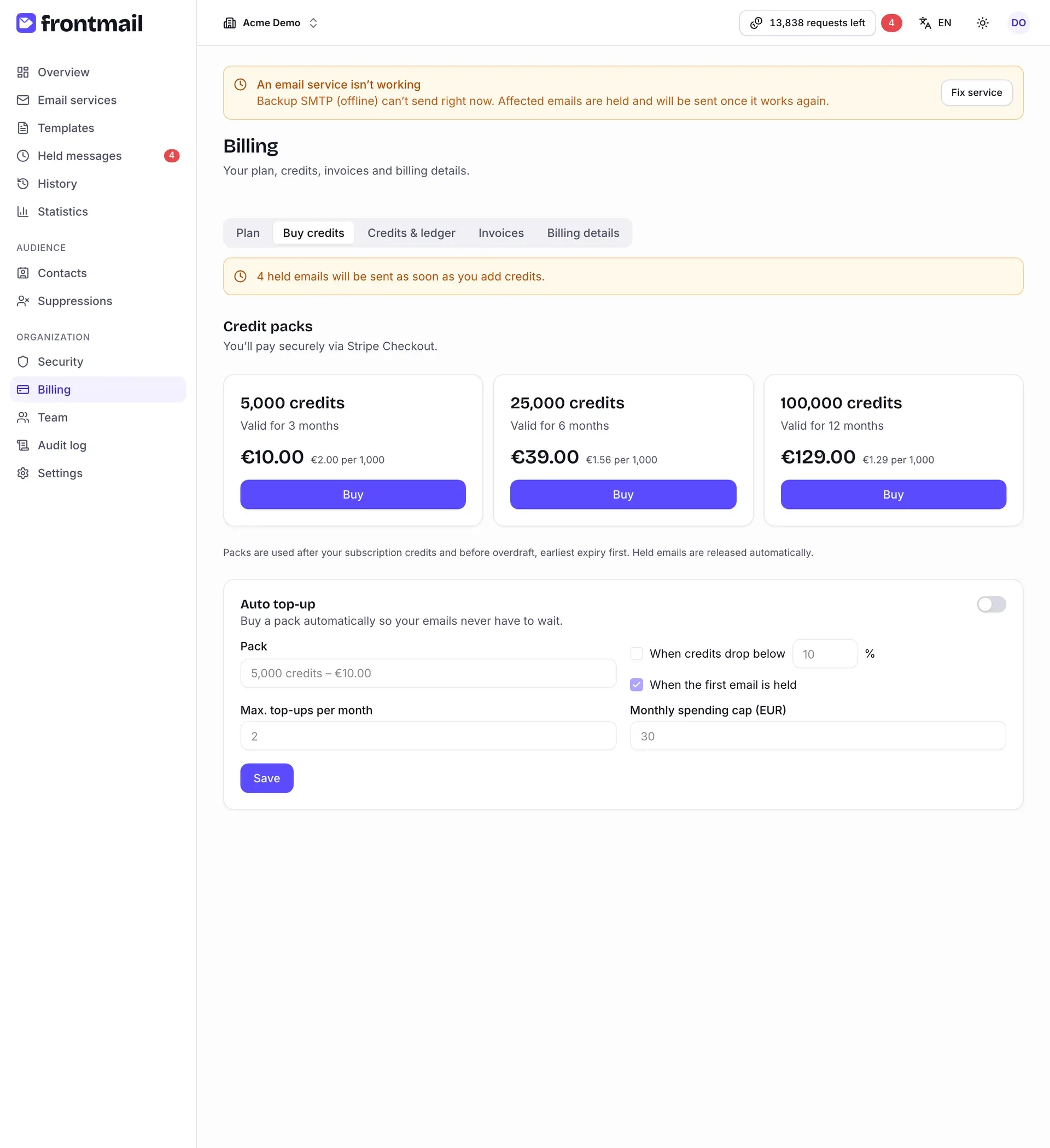
Credit packs add credits on top of your plan. Each card shows the pack size, how long the credits are valid and the price per 1,000 emails. Packs are used after your subscription credits and before overdraft, earliest expiry first – see Credit packs and Consumption order.
If emails are waiting in the hold queue, the tab reminds you how many will be sent as soon as you add credits.
How to buy a credit pack
Section titled “How to buy a credit pack”- Click Buy on the pack you want.
- What happens next depends on whether a card is saved – the text under Credit packs tells
you which case applies:
- One click – charged to …: your saved card is charged immediately and you see … credits added. If your bank asks for 3-D Secure, confirm the payment in the window that opens; the credits appear a moment later (Payment confirmed – credits will appear in a moment.).
- You’ll pay securely via Stripe Checkout.: you’re taken to Stripe Checkout and back, as when upgrading from Free.
- Held emails are released automatically once the credits arrive.
If the payment with the saved card fails, you see The payment didn’t go through with the reason. Click Pay another way in that message to pay through Stripe Checkout instead, for example with a different card.
How to set up auto top-up
Section titled “How to set up auto top-up”Auto top-up buys a pack automatically so your emails never have to wait. It needs a saved card – if there is none, the card shows Auto top-up needs a saved card; buy one pack via Checkout first or add a card through Manage cards & invoices.
- Turn on the Auto top-up switch.
- Choose the Pack to buy.
- Choose at least one trigger:
- When credits drop below a percentage (1–90 %),
- When the first email is held.
- Set Max. top-ups per month (1–20) and the Monthly spending cap in your currency. The cap must cover at least one pack.
- Click Save.
If a top-up payment fails or is disputed, auto top-up is paused and the card shows why. Update your card and click Save again to resume it (for a dispute, contact support first). Details in Auto top-up.
Spending by public-key traffic
Section titled “Spending by public-key traffic”Anyone can copy the public key from your website. The Spending by public-key traffic card below auto top-up decides whether emails sent with it may cost you money beyond your credits:
- Public-key emails may use the overdraft – off by default; such emails wait in the hold queue instead of using the overdraft.
- Public-key emails may trigger auto top-up – off by default; see Auto top-up.
Sends from your server (private key) and from the dashboard aren’t affected. Owners and billing members can change it; each change is saved right away and recorded in the audit log.
Credits & ledger
Section titled “Credits & ledger”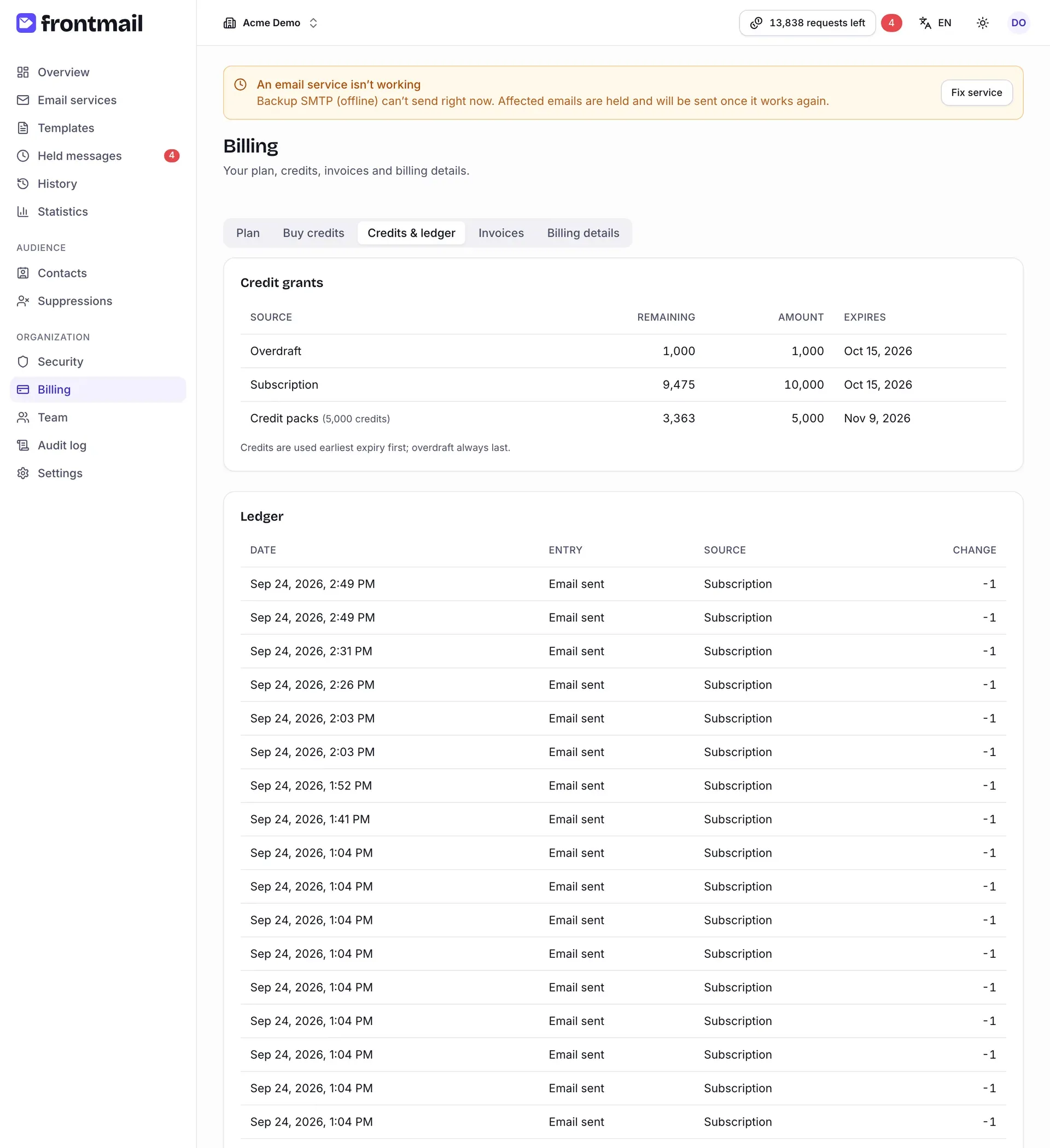
Credit grants lists every source of credits – Subscription, Credit packs, Bonus and Overdraft – with the Remaining and original Amount and when it Expires, sorted by expiry. Expired grants are dimmed and marked expired.
The Ledger below records every credit movement with its date, source and Change:
| Entry | Meaning |
|---|---|
| Credits added | A new grant – renewal, pack, upgrade or bonus. |
| Email sent | A credit used for a message. |
| Refund (email not sent) | A credit returned because the message couldn’t be sent. |
| Credits expired | Unused credits that reached their expiry date. |
| Credits revoked | Credits removed, for example after a refunded payment. |
| Adjustment | A manual correction by Frontmail support. |
Invoices
Section titled “Invoices”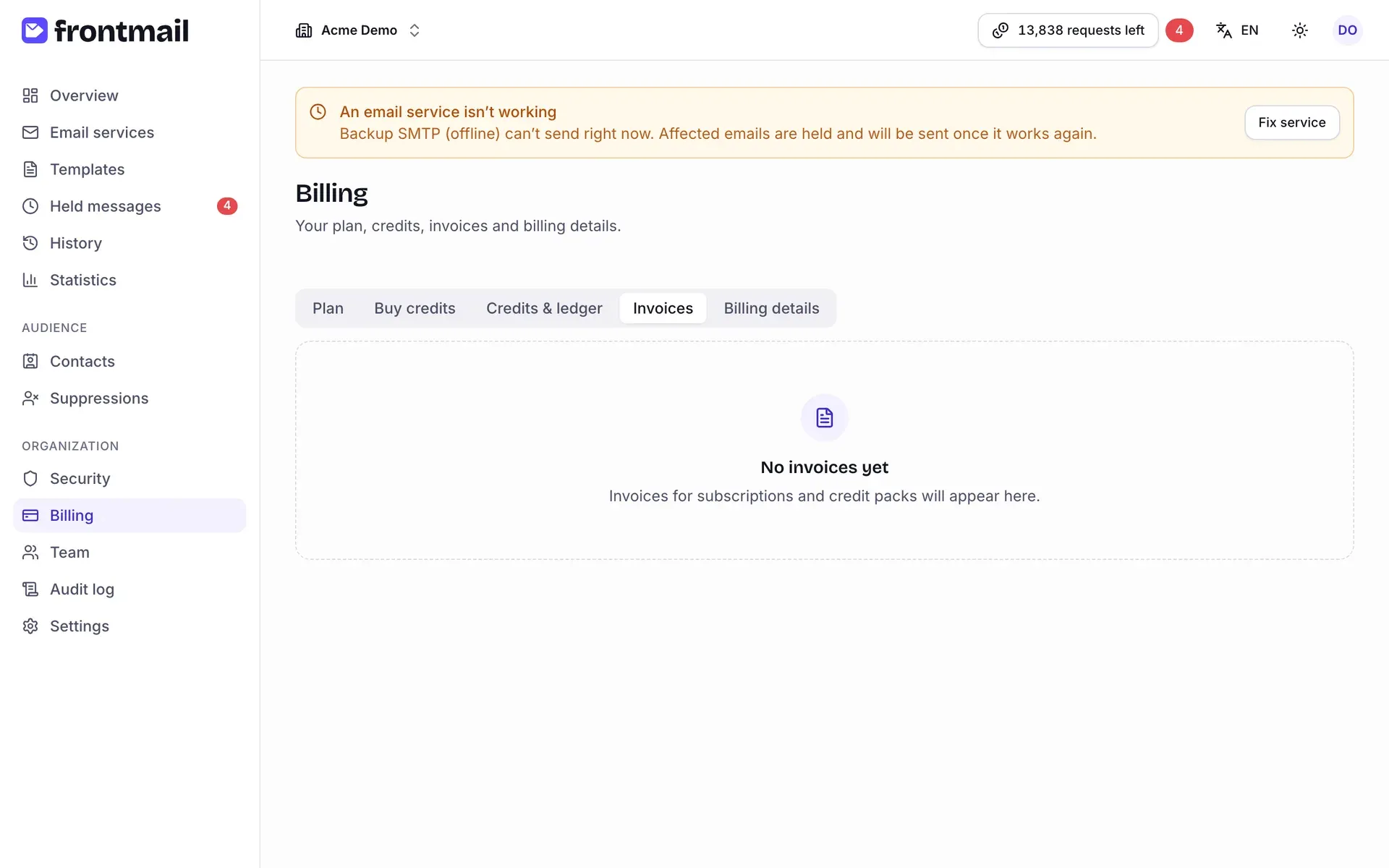
All invoices for subscriptions and credit packs, newest first. Each row shows the Invoice number and description, Date, Total and Status: Paid, Open, Draft, Void or Uncollectible. Click View to open the invoice page in Stripe, or PDF to download it. See Invoices and VAT.
Billing details
Section titled “Billing details”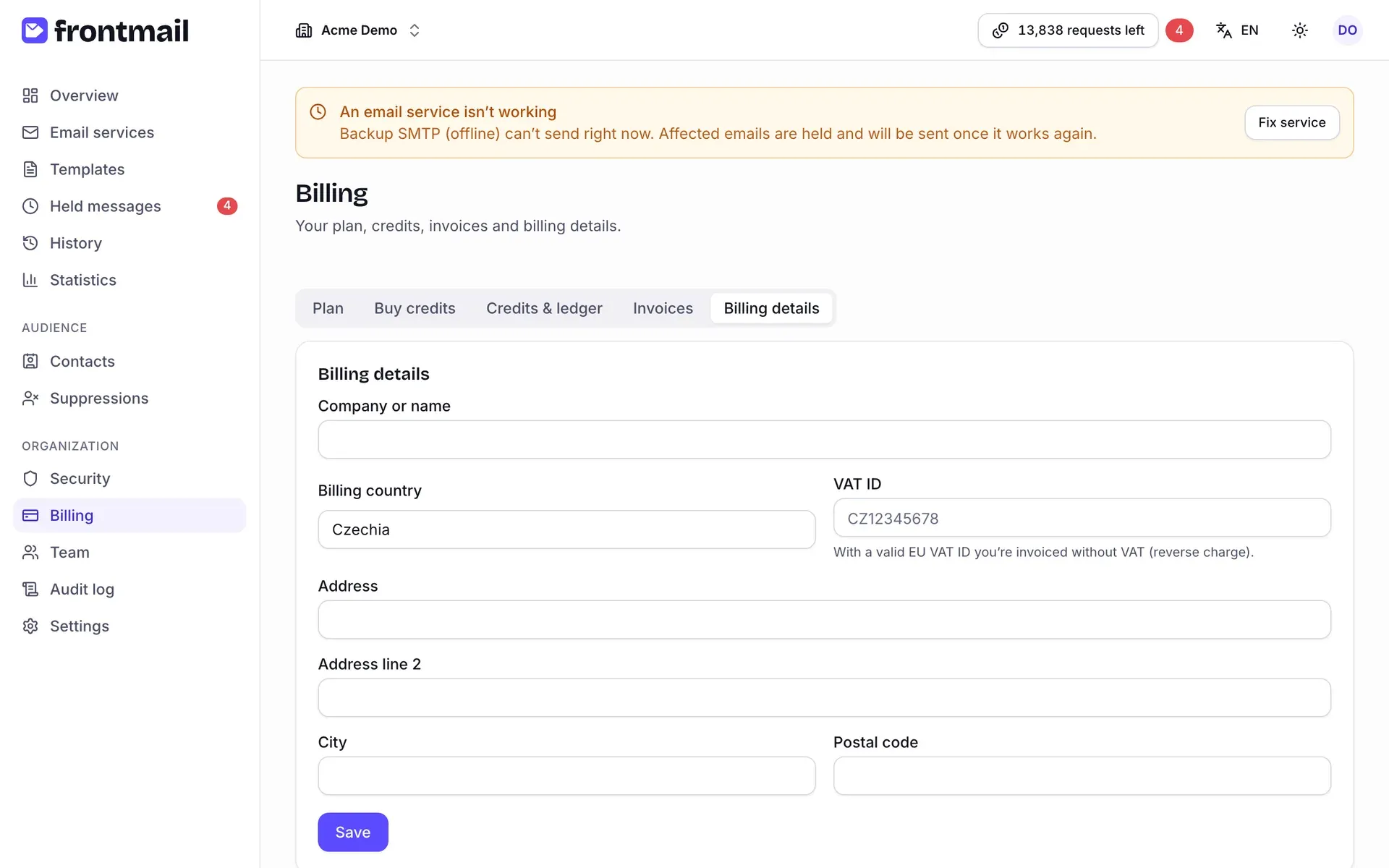
These details appear on your invoices.
How to update billing details
Section titled “How to update billing details”- Fill in Company or name, Billing country, VAT ID and the address (Address, Address line 2, City, Postal code).
- Click Save.
With a valid EU VAT ID you’re invoiced without VAT (reverse charge). The currency follows the billing country only until your first payment; after that it stays fixed. Changes apply to future invoices.