

History
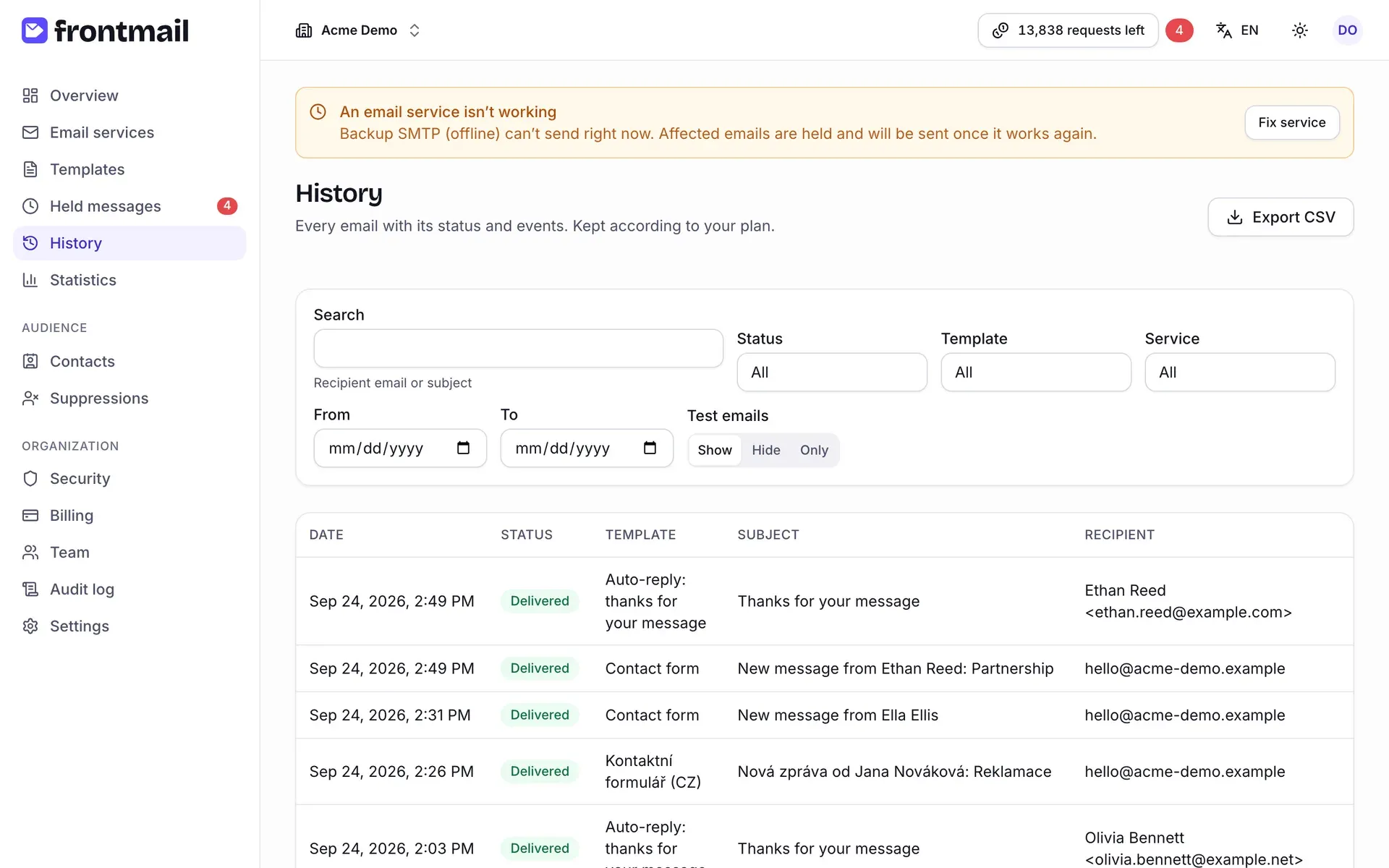
History lists every email your organization sent or tried to send – from your website, your servers, the dashboard and auto-replies – with its status and the full timeline of events. Use it to answer “did this email go out?” and “why not?”.
How long emails are kept
Section titled “How long emails are kept”History keeps emails according to your plan:
| Plan | History |
|---|---|
| Free | 7 days |
| Starter | 30 days |
| Pro | 90 days |
| Business | 180 days |
Older emails disappear from the list. Export them to CSV first if you need them longer.
How to find an email
Section titled “How to find an email”The filter bar above the list:
- Search – part of the recipient’s email address or of the subject.
- Status – a single status such as Sent, Delivered, Bounced or Discarded, or a
group:
- In progress – queued or being sent,
- Held – waiting in the hold queue for credits or a service,
- All problems – failed, bounced or marked as spam.
- Template and Service – only emails of one template or sent through one service.
- From and To – a date range.
- Test emails – Show (default) includes test emails from the editor, Hide leaves them out, Only shows nothing else.
The list updates as you change the filters. Each row shows the Date (with (test) for test emails), Status, Template, Subject and Recipient, newest first. Click Load more at the bottom for older emails.
The filters are part of the page address, so you can bookmark a view or send the link to a colleague – for example “all problems of the order template this week”. The link opens in the organization the colleague currently has selected.
What each status means is described in Message statuses.
Email detail
Section titled “Email detail”Click a row to open the detail panel on the right.
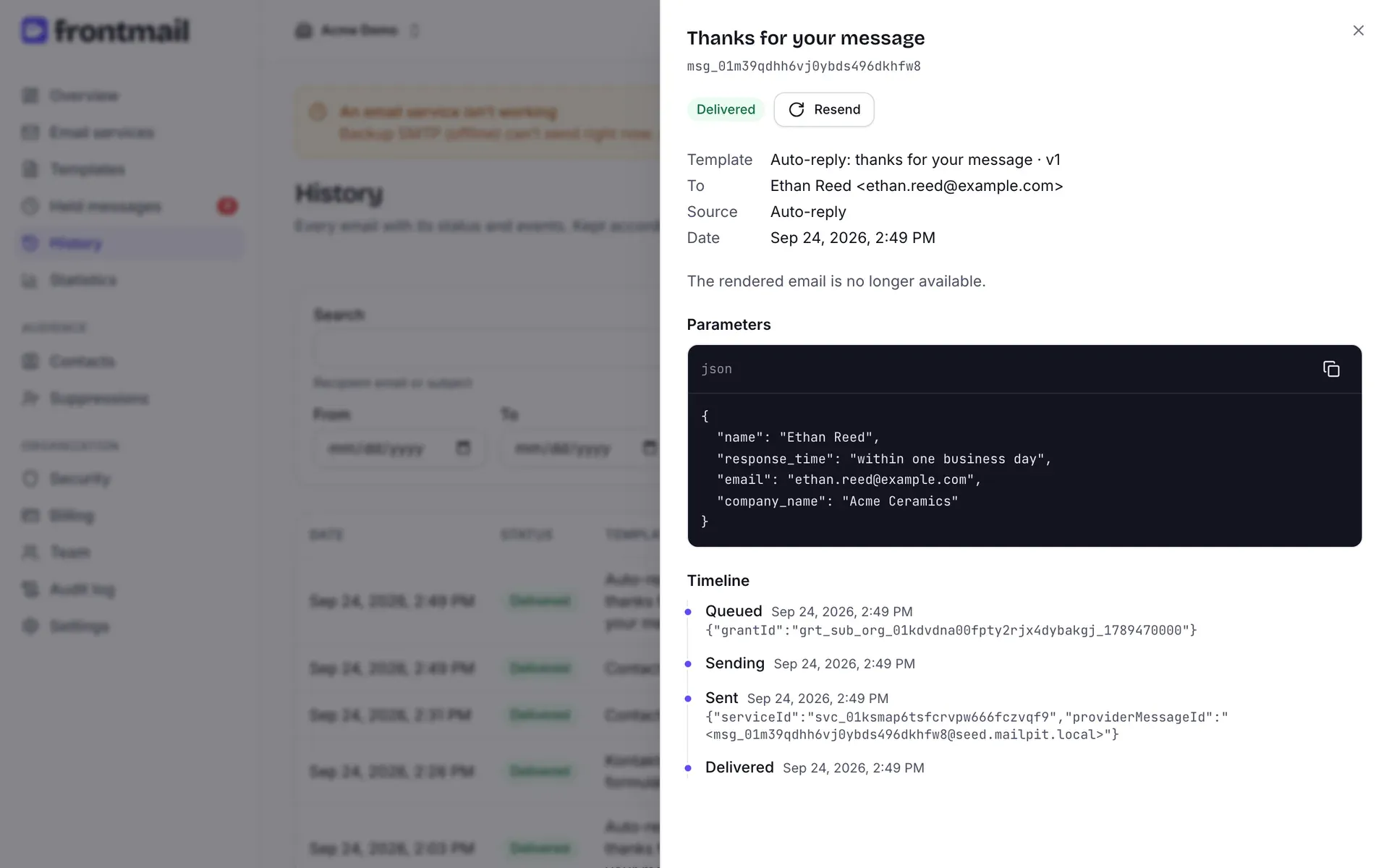
At the top you see the subject, the message ID (msg_…), the status badge and Resend. If the
email failed, a red box shows the error code and the provider’s message. Then:
- Template – the template and the version it was rendered with, e.g. Contact form · v3.
- To and Reply-To.
- Source – how the email was sent: Public key (from a website, followed by the website’s origin), Private key (from a server), Dashboard (a resend), Batch or Auto-reply.
- Date – when Frontmail accepted it.
- Rendered email – exactly what was sent, with HTML and Text tabs. For older emails it may say The rendered email is no longer available.
- Parameters – the values the email was sent with, as JSON.
- Timeline – every event with its time, for example:
| Event | Meaning |
|---|---|
| Accepted | Frontmail received the request. |
| Held / Released | The email waited in the hold queue and was released. |
| Queued, Sending, Sent | Handed to the sender and accepted by the provider. |
| Switched to fallback service | The main service failed and the fallback took over. |
| Retry scheduled | A temporary error; Frontmail tries again. |
| Auto-reply created | The template’s auto-reply was sent to the visitor. |
| Delivered, Bounced, Marked as spam, Opened, Link clicked | Events reported by the provider’s webhook. |
| Failed | Sending failed for good. |
| Credit refunded | The credit was returned because the email wasn’t sent. |
| Discarded | The held email was discarded. |
Provider events (delivered, bounced, opened, …) only appear if the provider’s webhook is set up – see Email services.
Close the panel with the × or Esc.
How to resend an email
Section titled “How to resend an email”- Open the email.
- Click Resend.
Resend creates a new email with the same parameters, rendered with the template’s current version and sent through the template’s current service. It gets a new message ID, and the panel switches to it. The original email stays unchanged.
Resending needs the Owner, Admin or Developer role and a verified email address.
How to export to CSV
Section titled “How to export to CSV”- Set the filters – the export uses exactly the same filters as the list.
- Click Export CSV.
The file contains the message ID, creation time, status, template and version, service (planned and actual), recipients (To, CC), subject, sent time, error, whether it was a test, the original message of a resend and the source. One export contains at most 100,000 emails; you can export up to 10 times per hour.