

Held messages
When Frontmail can’t send an email right now – because you’re out of credits or because an email service stopped working – it doesn’t drop it. The email is held and sent automatically once the problem is solved. Held messages lists every email that’s waiting. How the hold queue works in detail is explained in Hold queue.
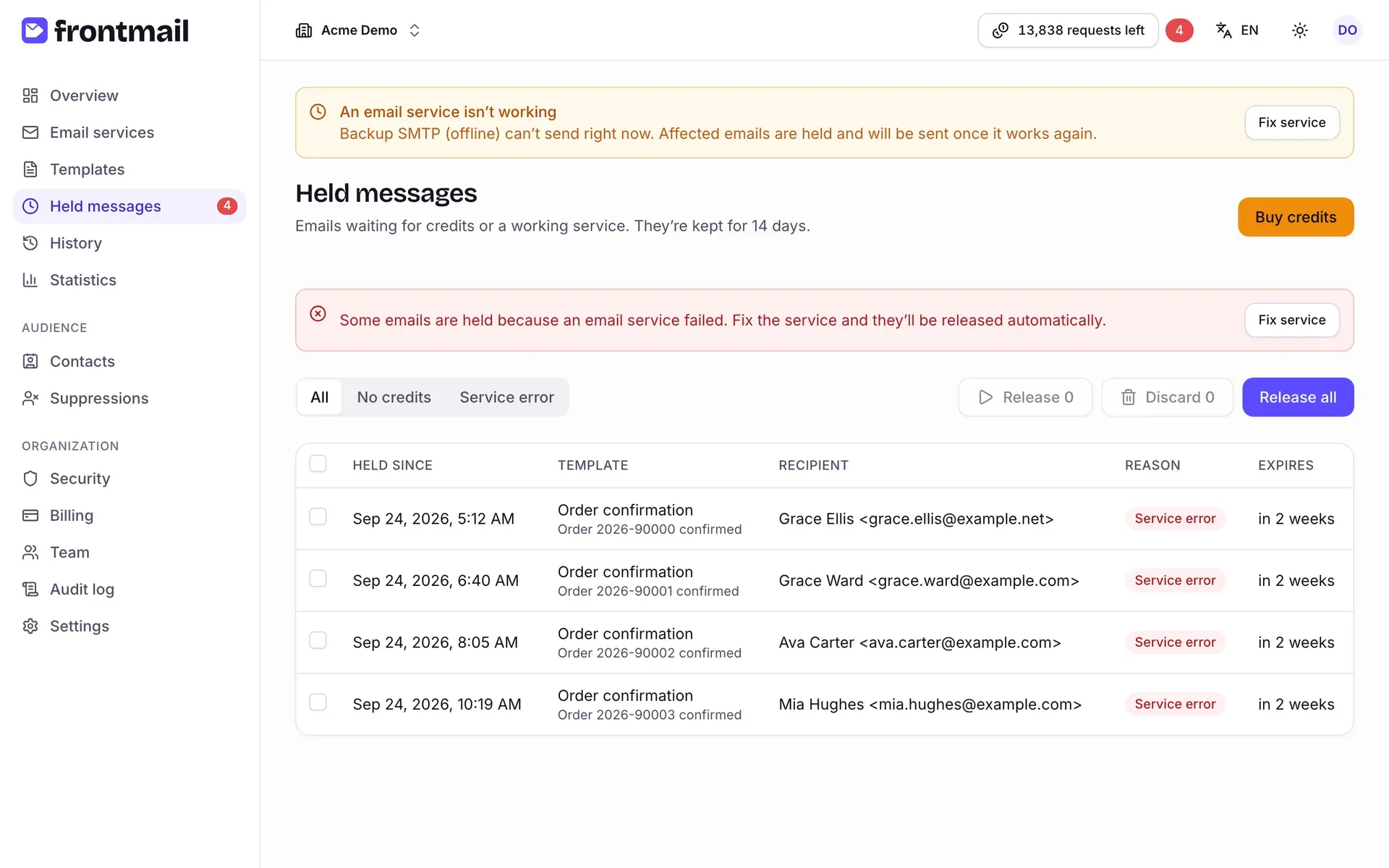
The number of held emails is shown as a red badge next to Held messages in the sidebar and next to the credits indicator in the top bar.
What’s on the page
Section titled “What’s on the page”The subtitle tells you how long emails are kept, e.g. They’re kept for 14 days. It depends on your plan: Free 3 days, paid plans 14 days.
Above the table you may see:
- These emails are held because you ran out of credits. Buy credits and they’ll be released automatically, oldest first. – when some emails wait for credits.
- Some emails are held because an email service failed. Fix the service and they’ll be released automatically. – with a Fix service button that opens the affected service.
- Your organization rejects requests without credits (402) instead of holding them. – your organization uses reject mode, so new emails aren’t held when credits run out. You can change this in Security → When you run out of credits. Emails held because of a service error still appear here.
Filter the list with All, No credits and Service error. The table shows:
| Column | Meaning |
|---|---|
| Held since | When the email was held. |
| Template | The template, with the email’s subject below. Click it to open the email in History. |
| Recipient | Who the email is for. |
| Reason | No credits or Service error. |
| Expires | When the email will be discarded if it’s still held, e.g. in 2 weeks. It turns red in the last 24 hours. |
Use Load more at the bottom to see older emails.
Releasing held emails
Section titled “Releasing held emails”Automatically
Section titled “Automatically”You usually don’t have to do anything:
- No credits – emails are released as soon as credits appear: you buy a credit pack, an auto top-up succeeds, you upgrade, a new billing period starts or support adds bonus credits.
- Service error – emails are released when the service works again: after you save new credentials, reconnect it, a Test connection succeeds or the daily check passes. See Email services.
Held emails are sent oldest first, with the template version that was current when they were accepted.
How to buy credits
Section titled “How to buy credits”Click Buy credits in the top right (owners and billing members only). It opens Billing → Buy credits. Once the payment goes through, held emails are released automatically. See Billing and Credit packs.
How to release emails manually
Section titled “How to release emails manually”Useful when you have only a few credits and want to send the most important emails first, or right after fixing a service.
- Tick the emails you want to send (or the checkbox in the header to select all loaded rows).
- Click Release N.
To release everything:
- Click Release all.
- Confirm in Release all held emails?
Emails are sent oldest first while you have credits. If credits run out, you see Credits ran out – the rest stay held until you add more. – the remaining emails stay in the queue, still in order.
How to discard held emails
Section titled “How to discard held emails”Discard emails you don’t want to send at all – test traffic, spam that got through, or emails that are no longer relevant.
- Tick the emails.
- Click Discard N.
- Confirm with Discard.
Discarded emails are never sent and don’t use credits. This can’t be undone. They stay in History
with the status discarded – see Message statuses.
Who can do what
Section titled “Who can do what”Everyone in the organization can see held emails. Releasing and discarding needs the Owner, Admin or Developer role. Buying credits needs Owner or Billing.
When held emails expire
Section titled “When held emails expire”Emails that are still held at the end of the hold period are discarded. Before that happens the owner gets a held messages expire soon email, and afterwards an email with the list of discarded messages. See Hold queue.